Candidate Onboarding Steps
Initial Check-in and Uploads:
- Photo ID Upload: Candidates must upload a valid photo ID. The proctor must verify that the name on the platform matches the name on the ID card and that the photo matches the candidate's profile.
- Photo Capture: Candidates are required to capture a live photo of themselves.
- 360-Degree Environment Video: Candidates must perform and upload a 360-degree video scan of their testing environment, including the test desk.
Proctor Validation Process:
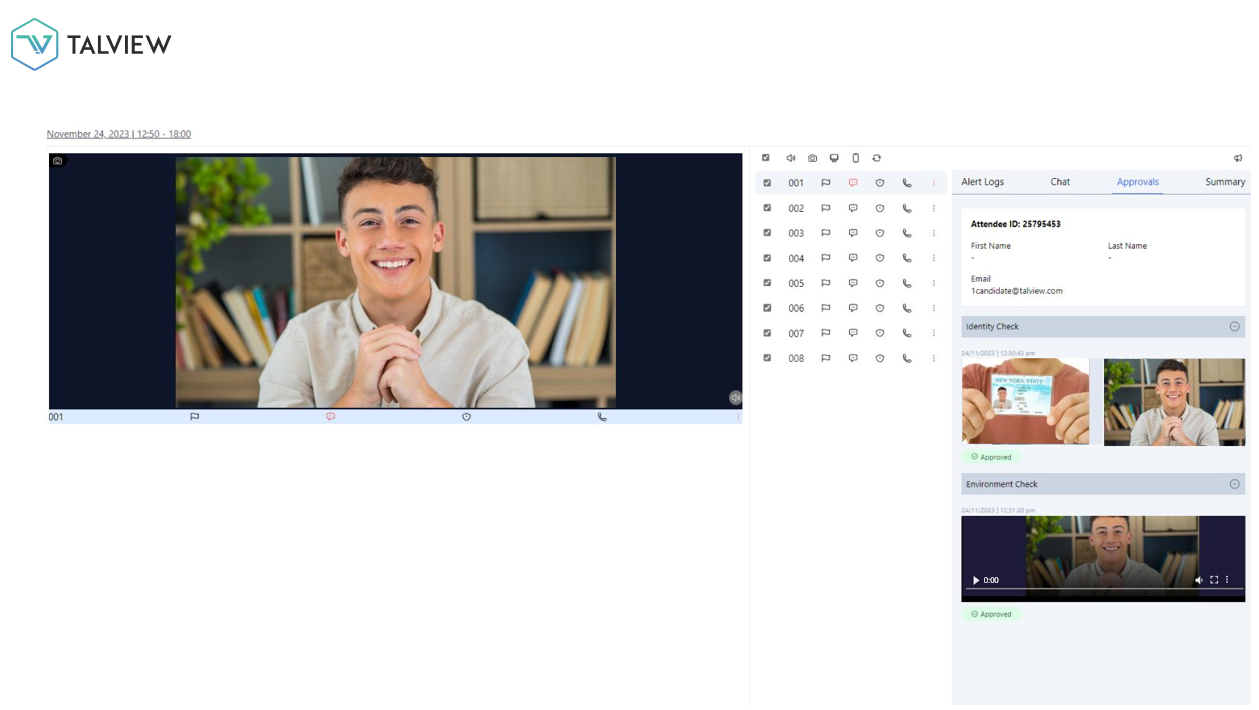
- Status Monitoring: Once joined, candidates appear in the "Launch NG" interface. A status of "Approval Pending" indicates the candidate has uploaded their pre-checks and is waiting for proctor verification.
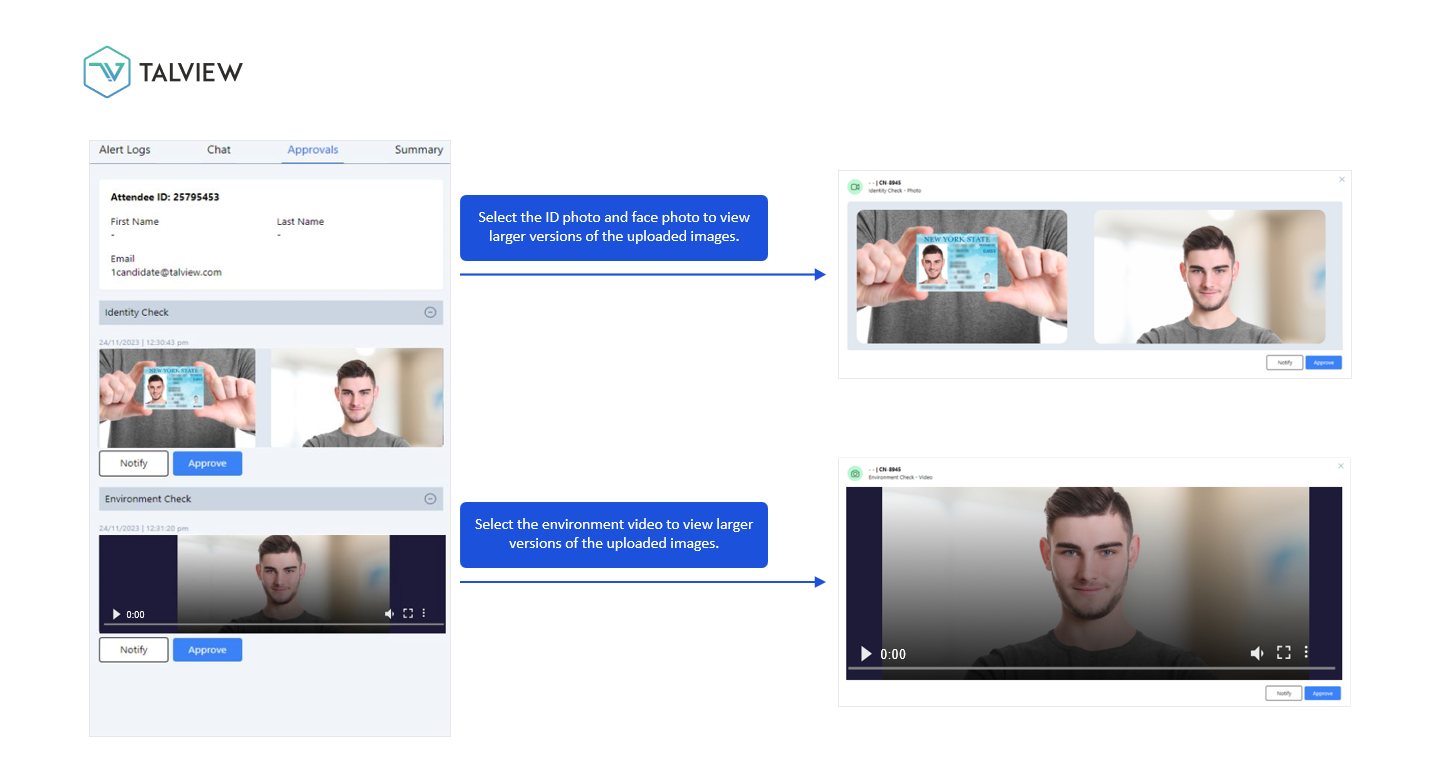
- Reviewing Media: Proctors can click on the ID photo, face photo, or environment video to view larger versions for closer inspection.
- Environment Verification: Proctors review the 360-degree video to ensure the area is free of unauthorized objects (based on a provided checklist) and that the candidate is not wearing a smartwatch or visible Bluetooth earpiece.
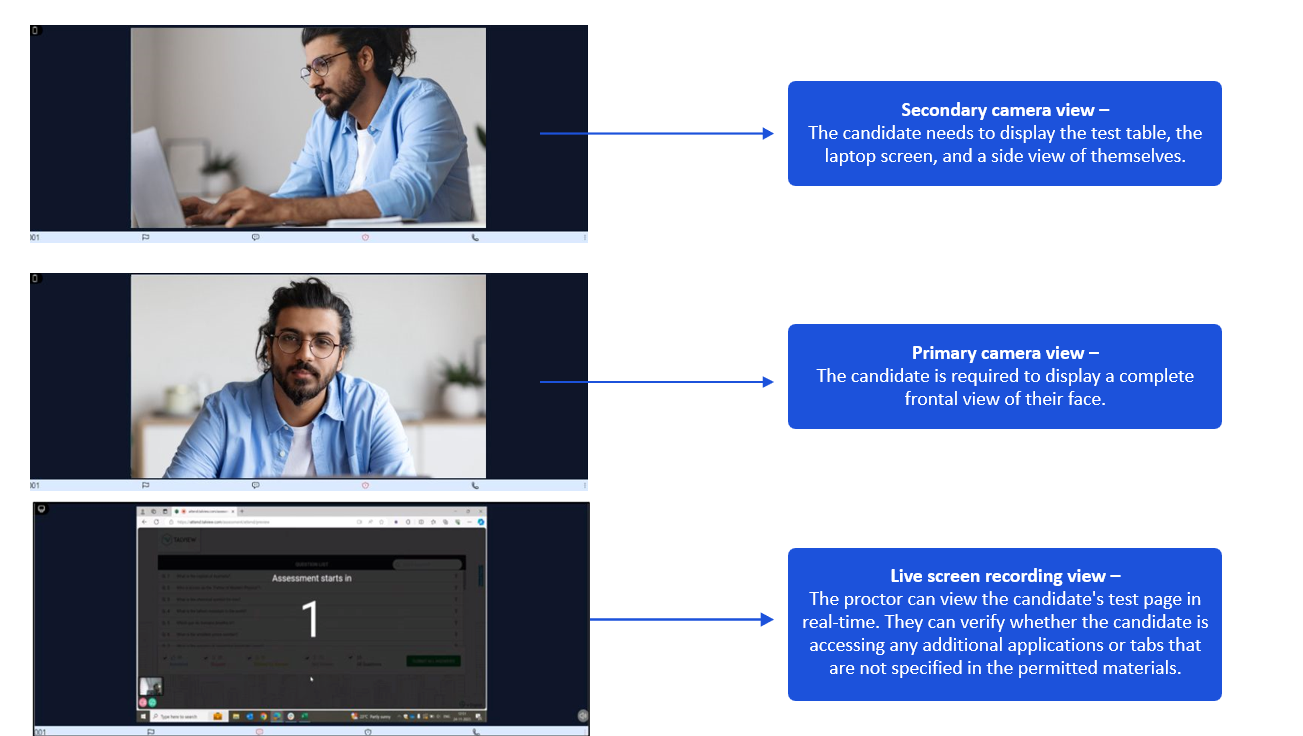
- Camera Feeds: Proctors monitor the Primary camera (frontal view of the face) and the Secondary camera (which must show the test table, laptop screen, and a side view of the candidate).
- Status Monitoring: Once joined, candidates appear in the "Launch NG" interface. A status of "Approval Pending" indicates the candidate has uploaded their pre-checks and is waiting for proctor verification.
Approval or Rejection:
- Approval: If the validation is successful, the proctor clicks the "Approve" button. The candidate is then taken to the assessment screen once the test starts.
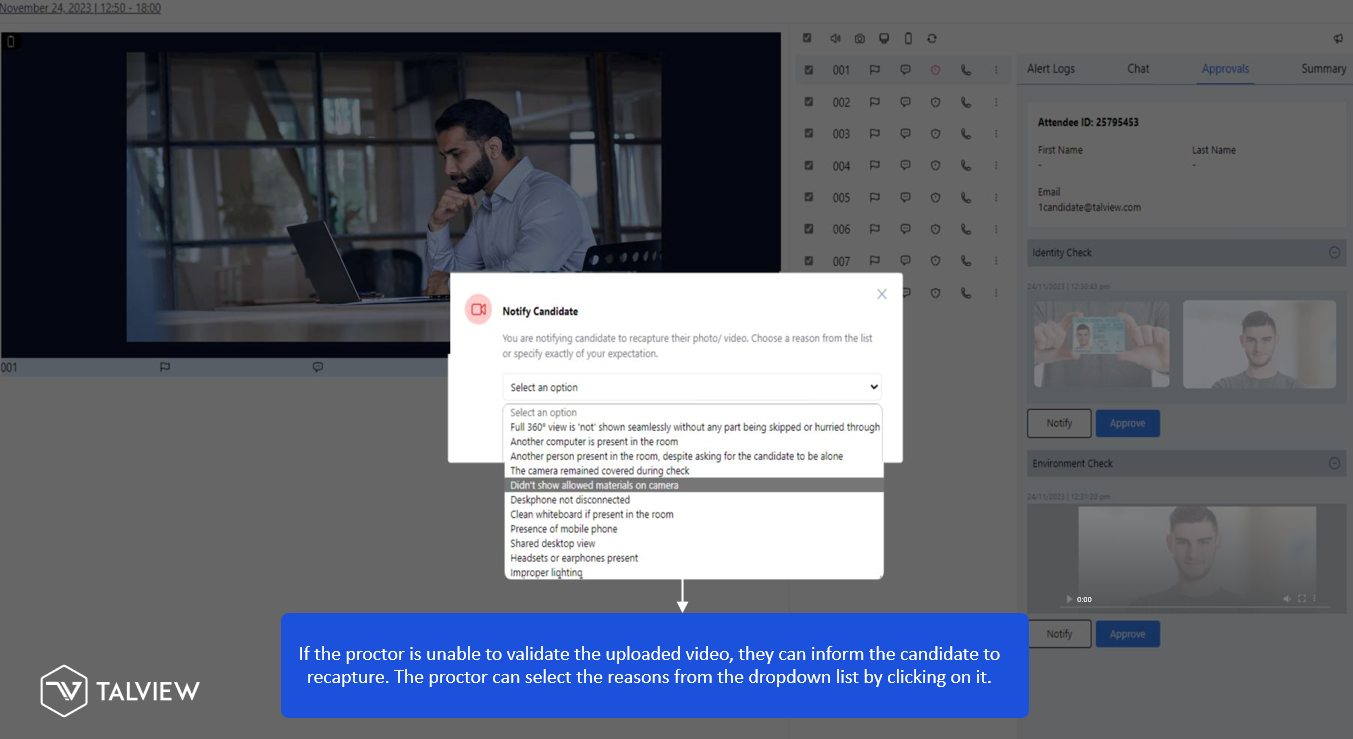
- Notification/Rejection: If the pre-checks are invalid (e.g., blurry photo, invalid ID, or poor lighting), the proctor clicks the "Notify" button. They can select specific reasons from a dropdown menu to inform the candidate to retake the photo or video.
- Approval: If the validation is successful, the proctor clicks the "Approve" button. The candidate is then taken to the assessment screen once the test starts.
Communication and Support:
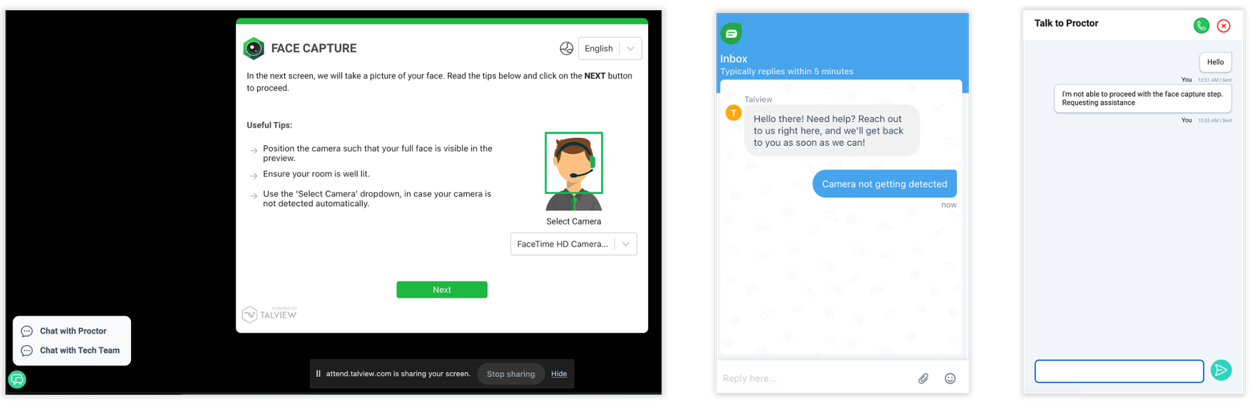
- Integrated Chat/Call: Proctors can use the integrated chat or audio call features to guide candidates if they get stuck during the pre-checks.
- Technical Support: Attendees have access to a technical support chat at the bottom left of the screen as soon as they enter the session.
If you continue facing issue and would like to raise a support ticket, click here
Tags: Was this article helpful?
That’s Great!
Thank you for your feedback
Sorry! We couldn't be helpful
Thank you for your feedback
Feedback sent
We appreciate your effort and will try to fix the article