Preparation and Requirements Before logging in, the proctor must ensure the following conditions are met:
- Environment: Carry out proctoring from a quiet place with no distractions or disturbances.
- Device: Use a laptop or desktop with Google Chrome installed.
- Internet: Have a stable internet connection with a speed of at least 10Mbps.
- Guidelines: Log in according to the specific test guidelines provided.
2. Accessing the Portal
- Navigate to the Proview URL: https://live-v2.proview.io.
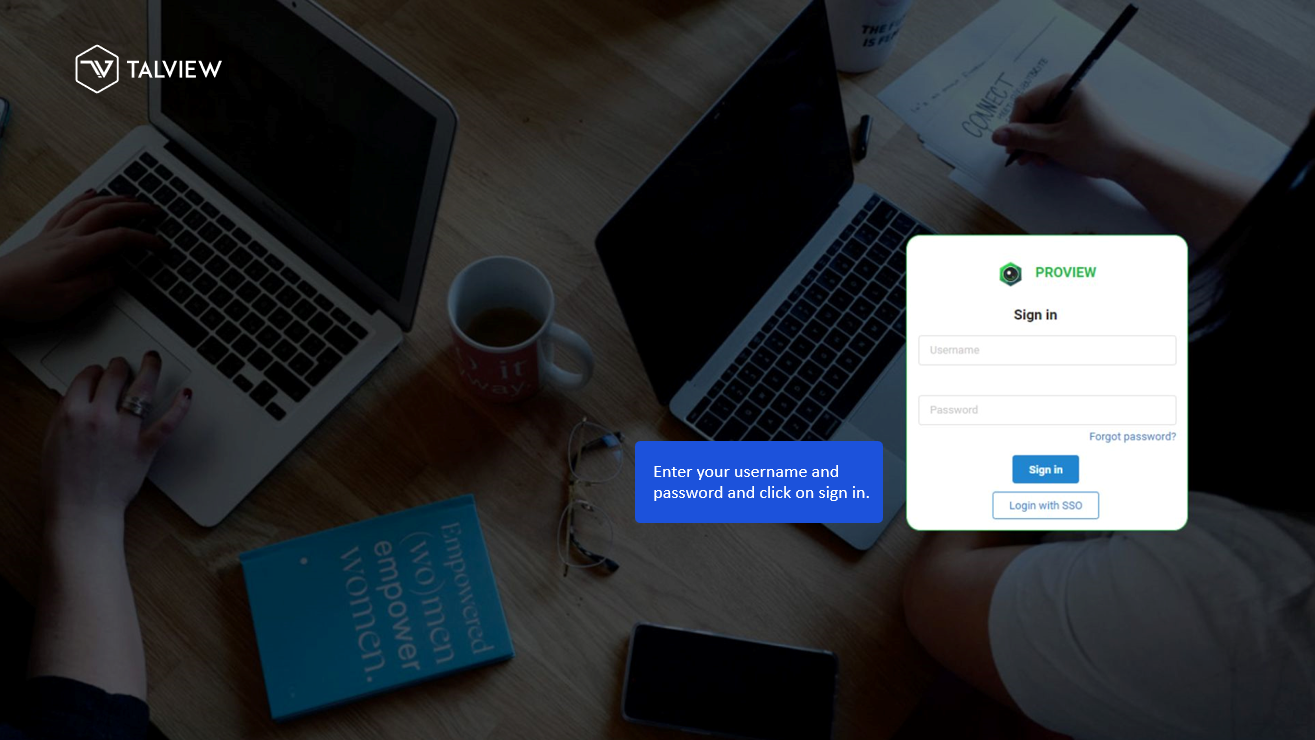
3. Entering Credentials
- Enter your assigned username and password.
- Click on the Sign In button.
4. Selecting the Event
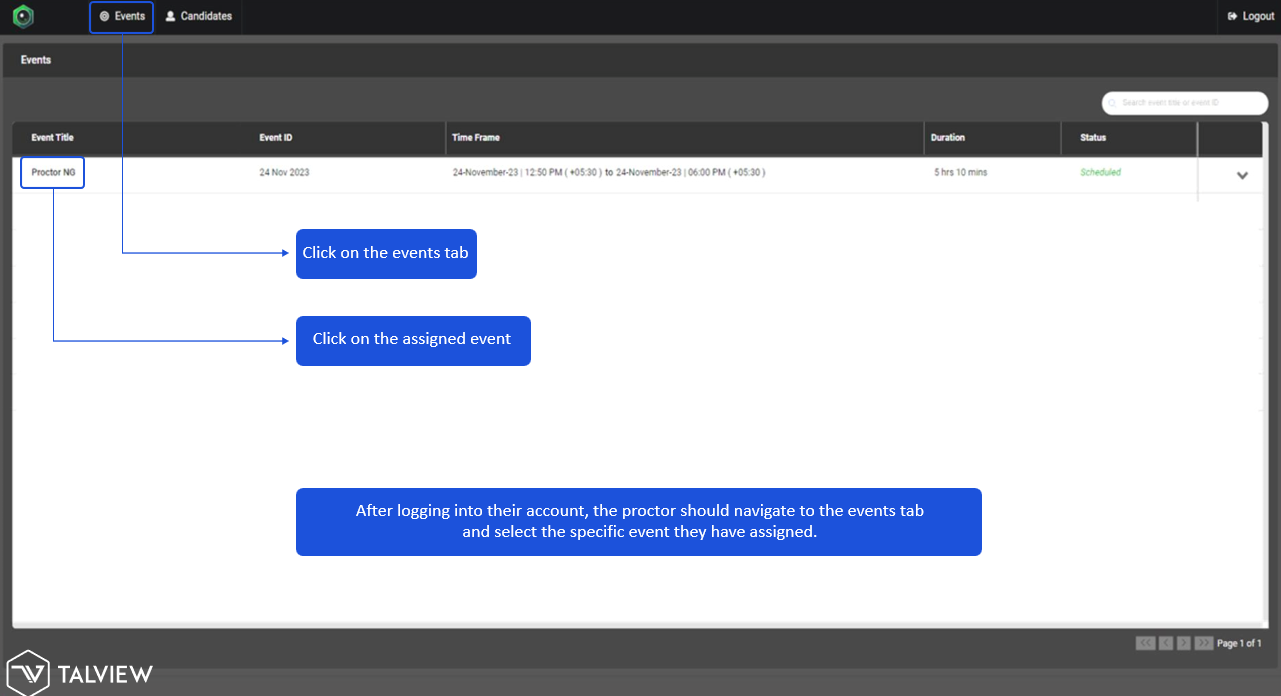
- Once logged in, navigate to the Events tab.
- Select the specific assigned event from the list.
- An instruction page will appear displaying comprehensive details of the event.
5. Launching the Interface
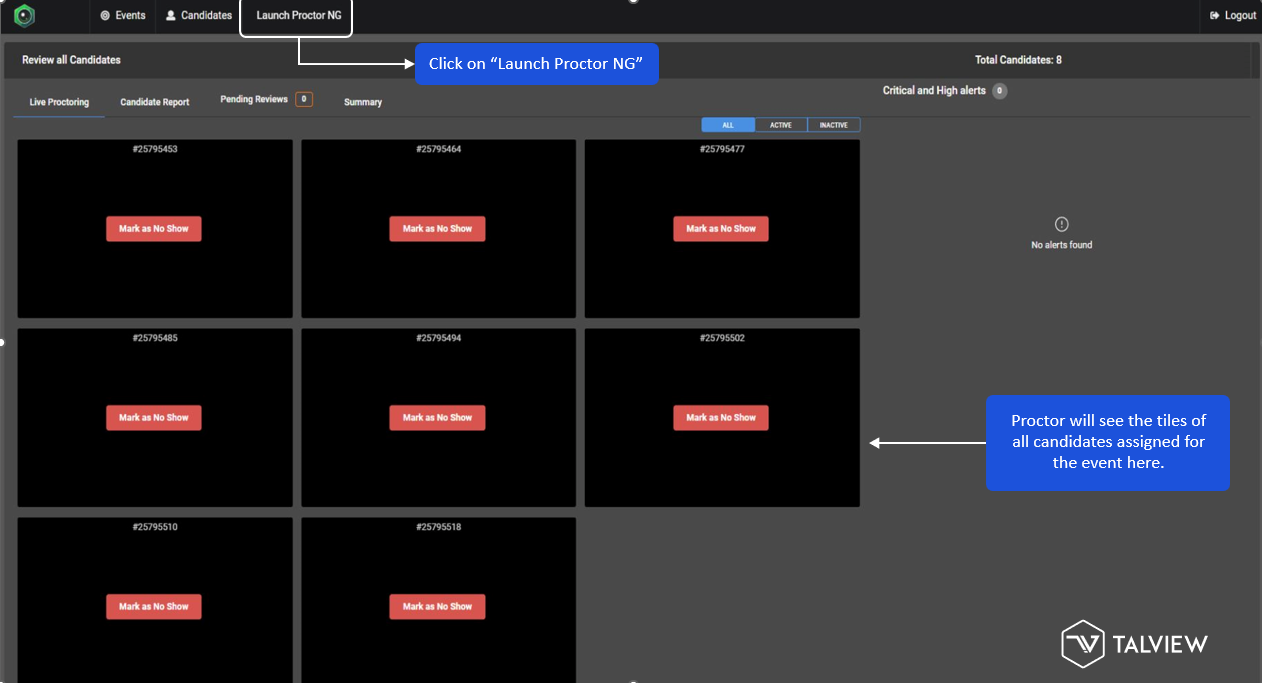
- Click on the button labeled "Launch Proctor NG" (or "Launch NG").
- This will open the interface where the proctor can see the tiles of all candidates assigned to that event.
6. Initial Monitoring
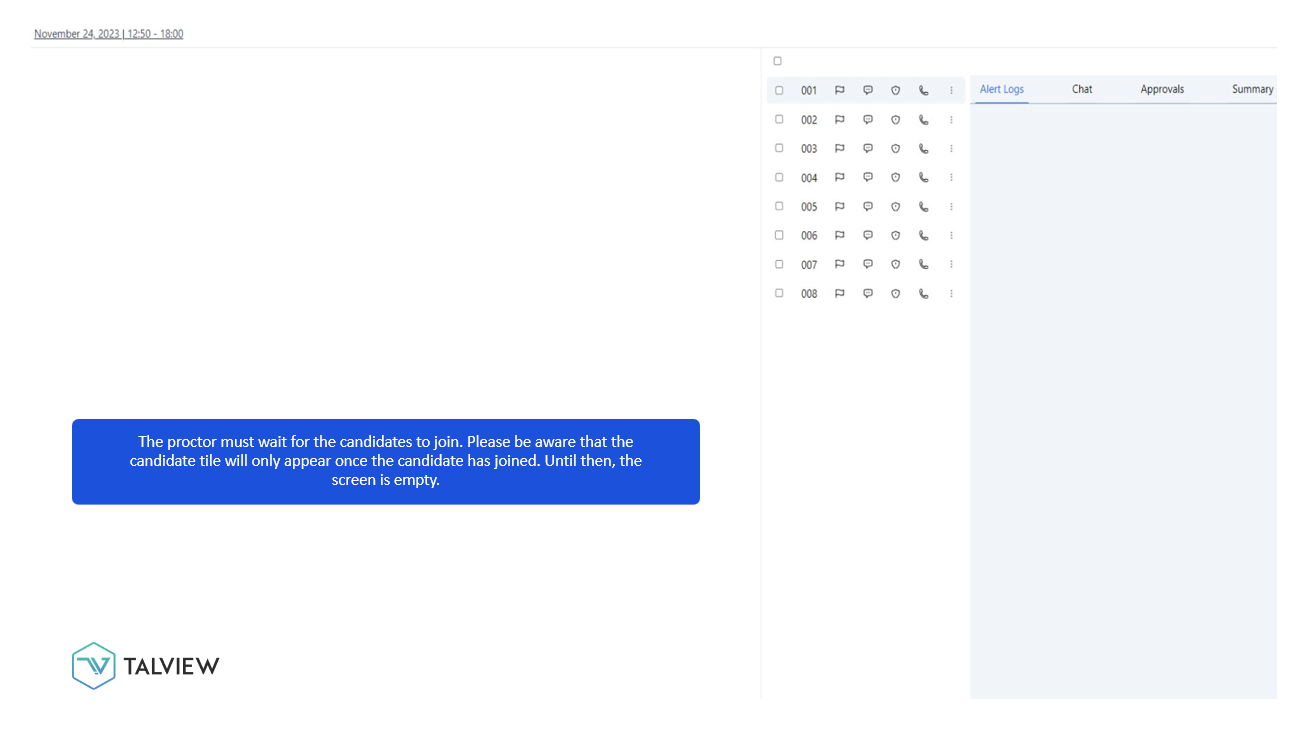
- The proctor must wait for candidates to join; candidate tiles will only appear once they have joined the session.
- Initially, a "no feed" sign may appear until the candidate connects their cameras and completes the onboarding prechecks (photo capture, ID upload, and 360-degree video).
If you continue facing issue and would like to raise a support ticket, click here
Tags: Was this article helpful?
That’s Great!
Thank you for your feedback
Sorry! We couldn't be helpful
Thank you for your feedback
Feedback sent
We appreciate your effort and will try to fix the article