1. Monitoring Candidates
Proctors monitor candidates through a multi-feed interface and specific observation protocols:
Simultaneous Feeds: Proctors monitor four live feeds for each candidate:
Primary Camera: A complete frontal view of the candidate's face.
Secondary Camera: A view from a mobile device showing the test table, laptop screen, and a side view of the candidate.
Live Screen Recording: Real-time view of the candidate's test page to ensure no unauthorized applications or tabs are opened.
Universal Mic: Audio monitoring of the candidate's environment.
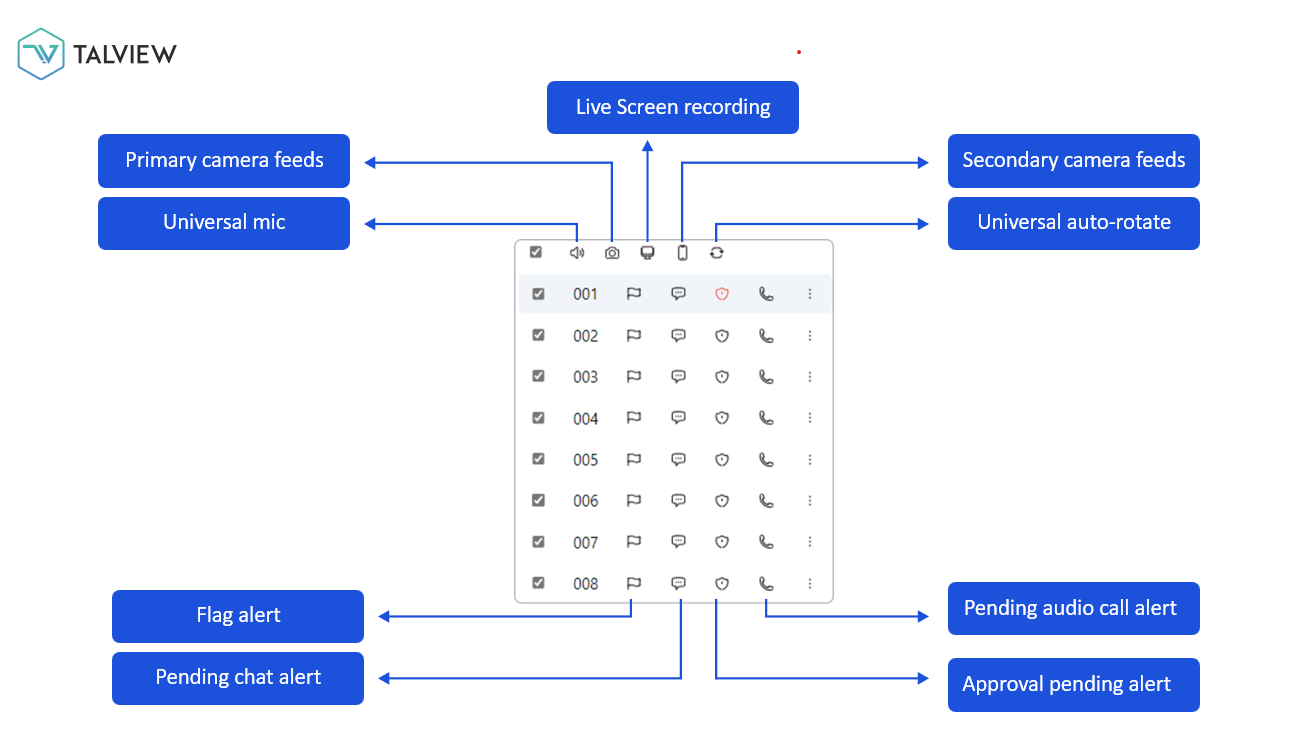
Unitary Views: Proctors must switch from the tiled "refresh image" view to a "unitary" (individual) live video view for each candidate at least once every 10 minutes to ensure continuous compliance.
Communication Tools:
Chat: Proctors can communicate with individual candidates to provide guidance or warnings.
Audio Call: Candidates can request a call (via a "Raise Hand" icon). The proctor must initiate the call, and only the proctor has the authority to end it.
Status Indicators: Proctors monitor tile statuses such as "No Feed" (candidate offline or secondary camera not connected), "Reconnecting" (bandwidth issues), and "Approval Pending."
2. Handling Flags and Suspicious Activity
The system uses a combination of AI automation and manual oversight:
AI-Enabled Flagging: The system automatically flags behaviors such as:
Looking away from the screen frequently.
Talking aloud (reading questions softly is allowed, but audible speaking is flagged).
Presence of unauthorized persons or objects (e.g., calculators, smartwatches, or Bluetooth earpieces).
Leaving the room or being out of the camera view.
Background noise like TV or radio.
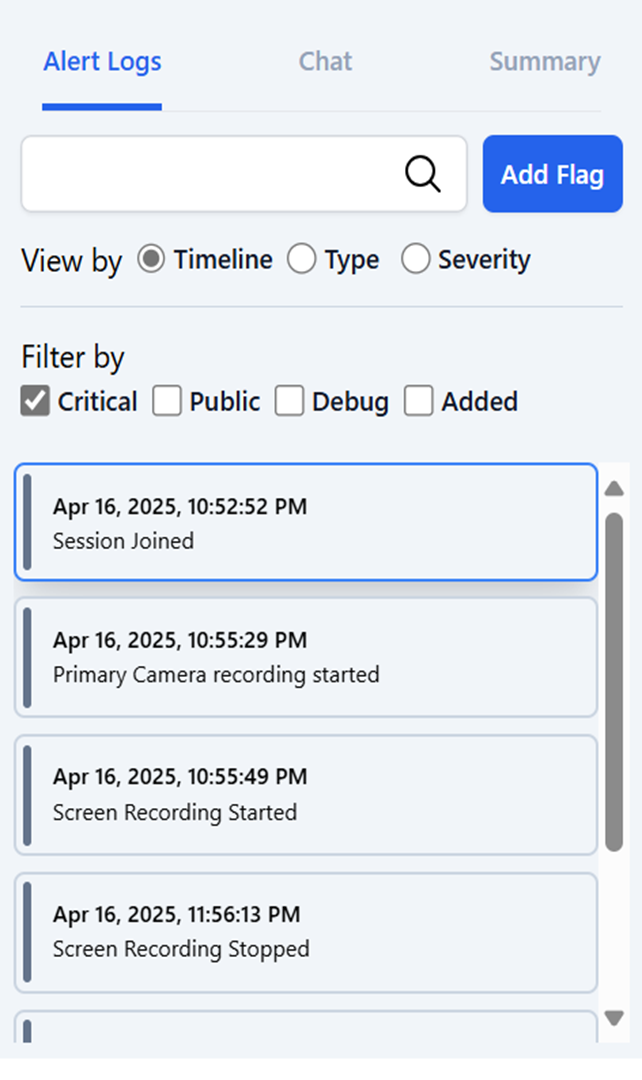
Manual Validation of AI Flags: Proctors must immediately review AI flags. They can:
Suspend/Change: If the flag is a false positive, the proctor enters a comment and suspends it.
Validate: If the violation is real, the proctor follows the SOP (Standard Operating Procedure).
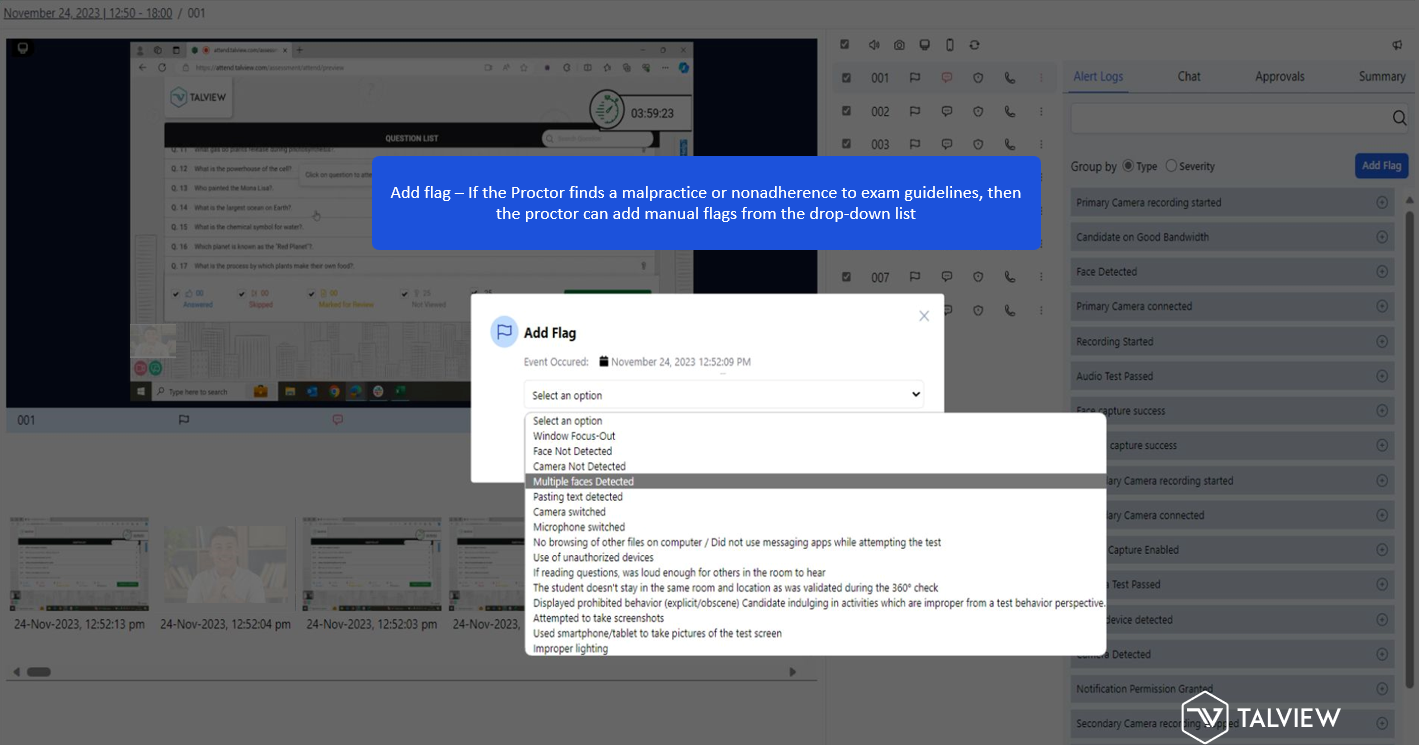
Manual Flags: Proctors can manually add flags from a dropdown list if they observe non-adherence to guidelines that the AI did not catch (e.g., lighting changes or suspicious background activity).
Priority Levels:
Critical Flags: May require immediate invalidation of the exam.
High Priority: Candidate is provided warnings as per the SOP.
Low Priority: Candidate is warned that repeated actions could impact the assessment's validity.
3. Intervention and Termination Actions
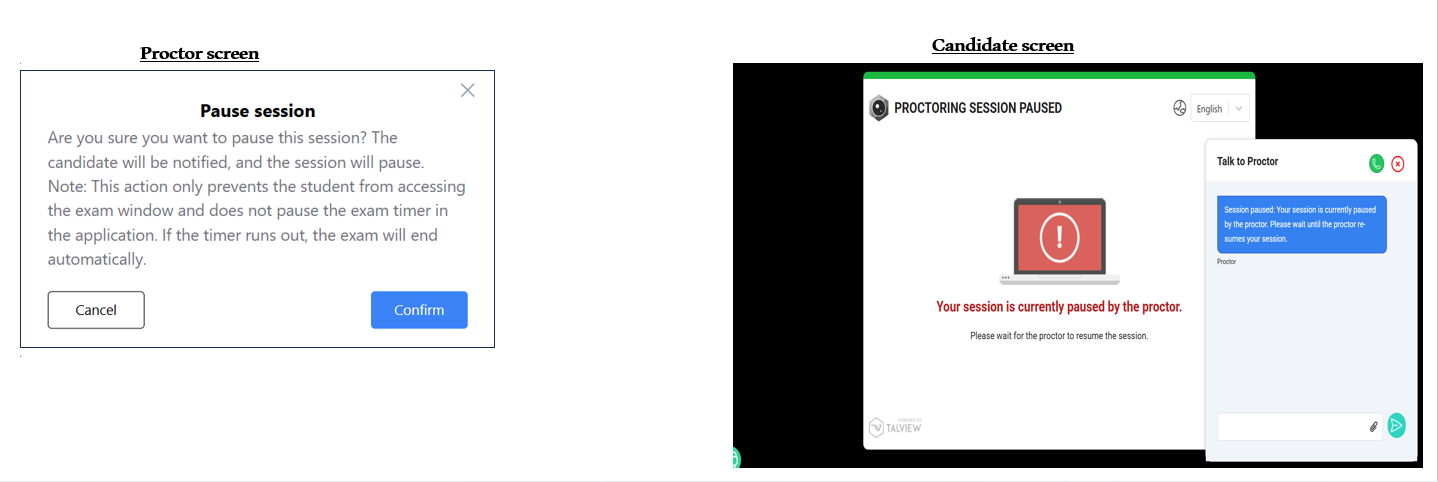
Test Pause: Proctors can pause the test, preventing the candidate from proceeding. Once resumed, the candidate continues from where they left off.
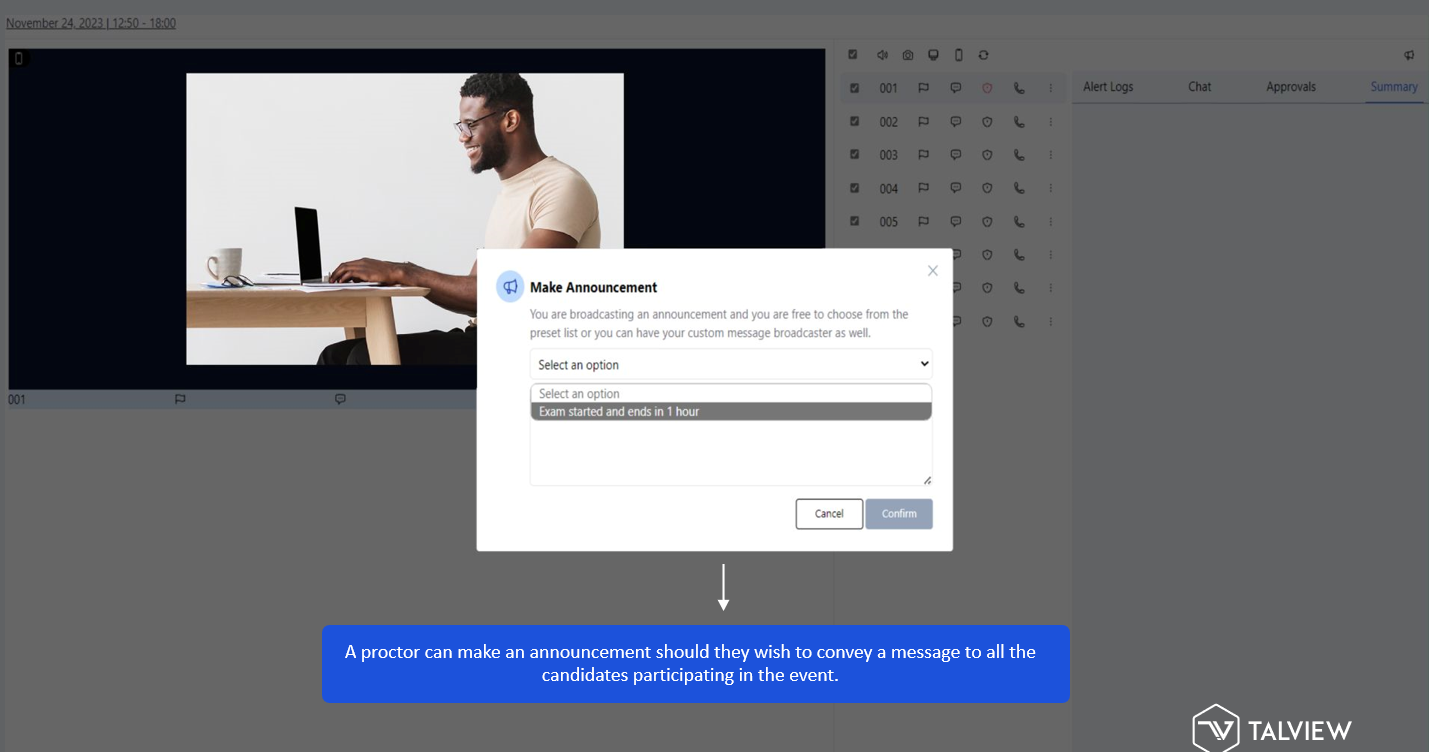
Global Announcements: Proctors can send a message to all candidates in an event simultaneously.
Termination: If malpractice is confirmed, the proctor can click the "Terminate" button.
Mandatory Requirement: The proctor must provide a written explanation for the termination.
Candidate Experience: The candidate will see a message stating, "Sorry your exam is terminated," and will be unable to proceed.
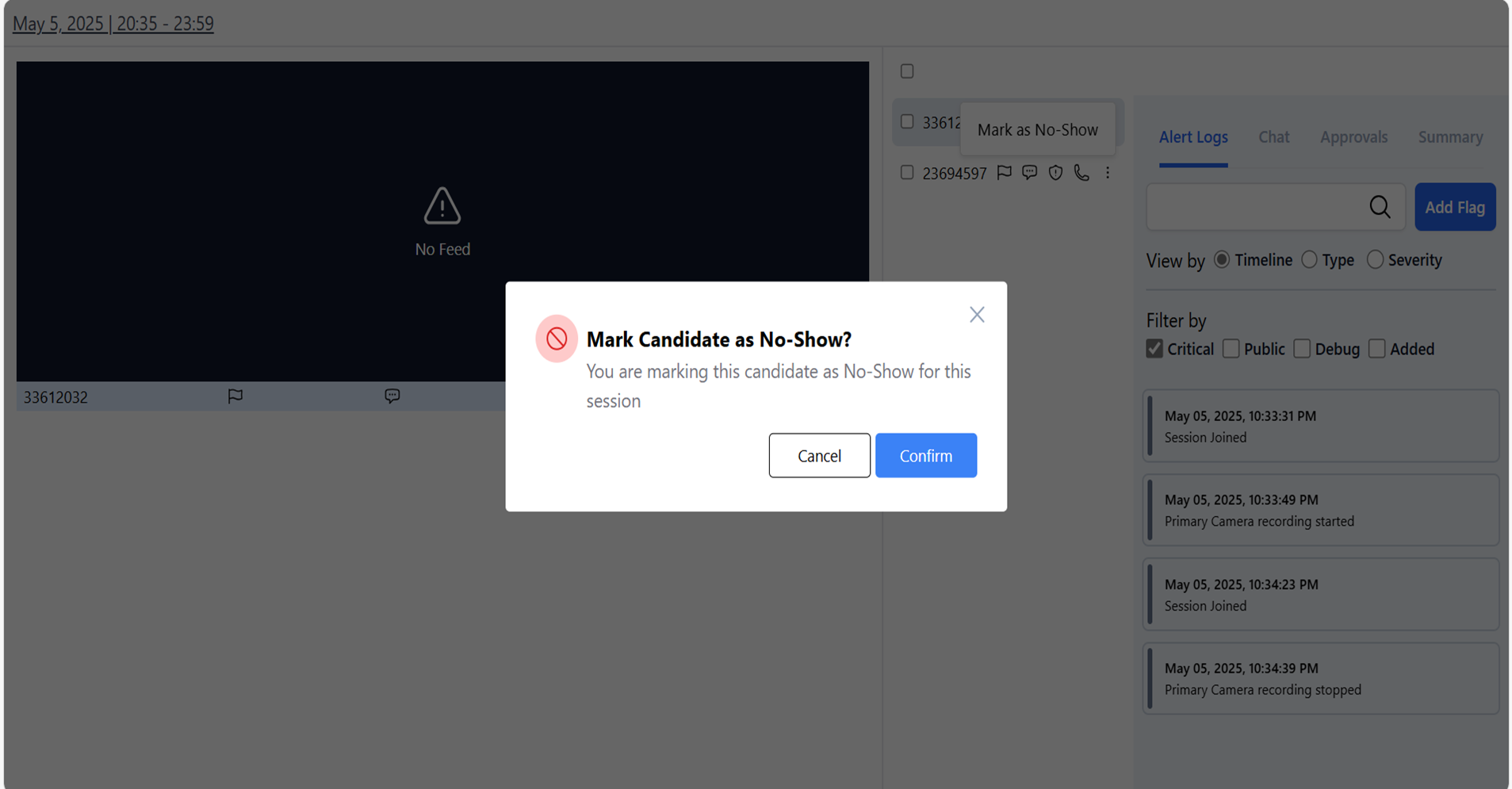
No show
4. Post-Examination Reporting
After the session, a Proctor Report is generated. The proctor must categorize the session into one of the following final statuses:
No Malpractice: Adhered to all rules.
Needs Investigation: Potential concerns require further clarification.
Malpractice Detected: Evidence of misconduct identified.
Technical/Platform Issues: Categorized by device, Talview platform, or assessment engine issues.
Non-technical Issue: Procedural or behavioral problems not related to technology.
Proctors are required to provide closing comments, which are mandatory in cases of termination. These reports are then confirmed or disputed by nominated authorities.
If you continue facing issue and would like to raise a support ticket, click here
Tags: Was this article helpful?
That’s Great!
Thank you for your feedback
Sorry! We couldn't be helpful
Thank you for your feedback
Feedback sent
We appreciate your effort and will try to fix the article